

Right-to-left layout
Start from the reader's side
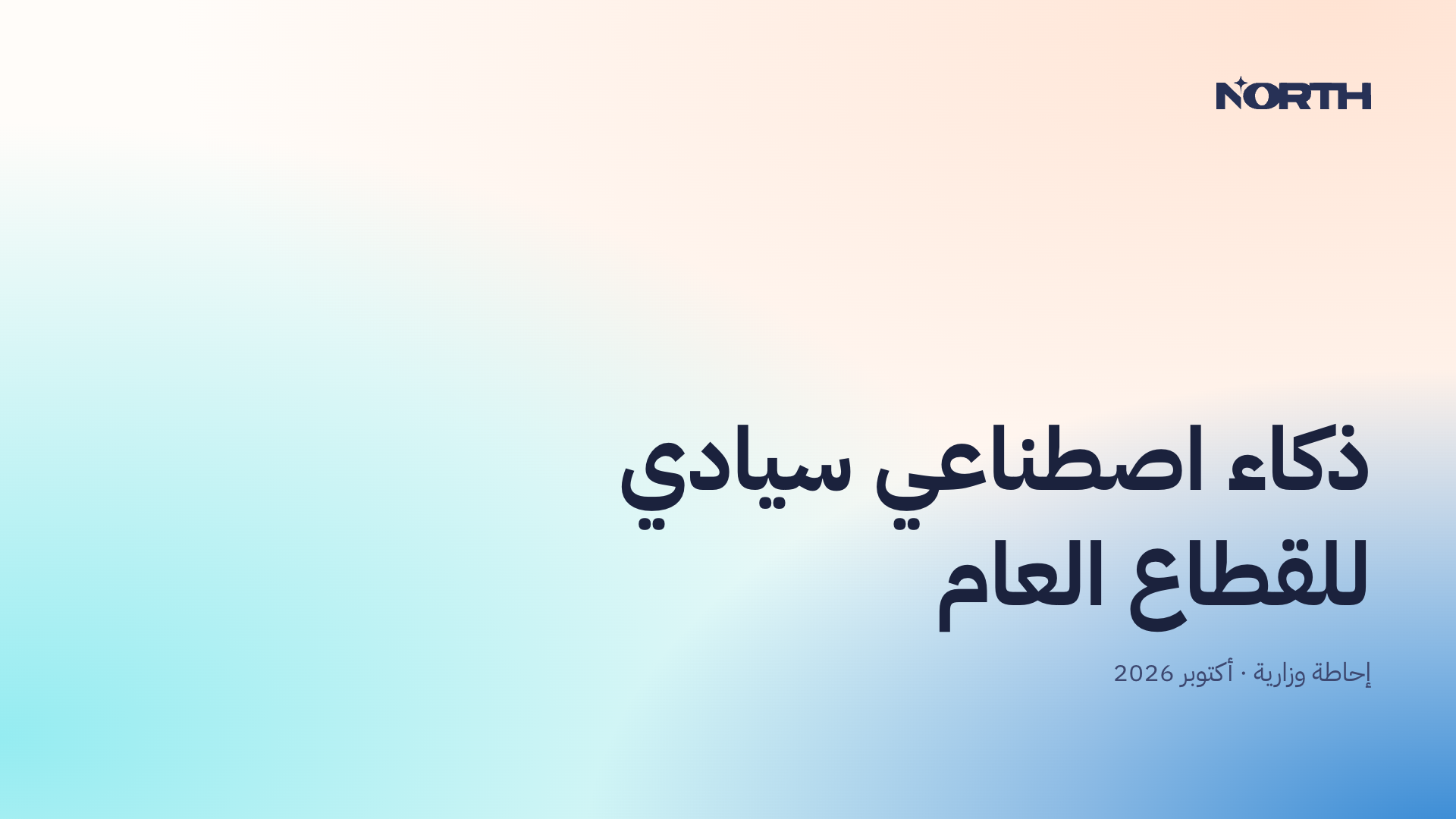
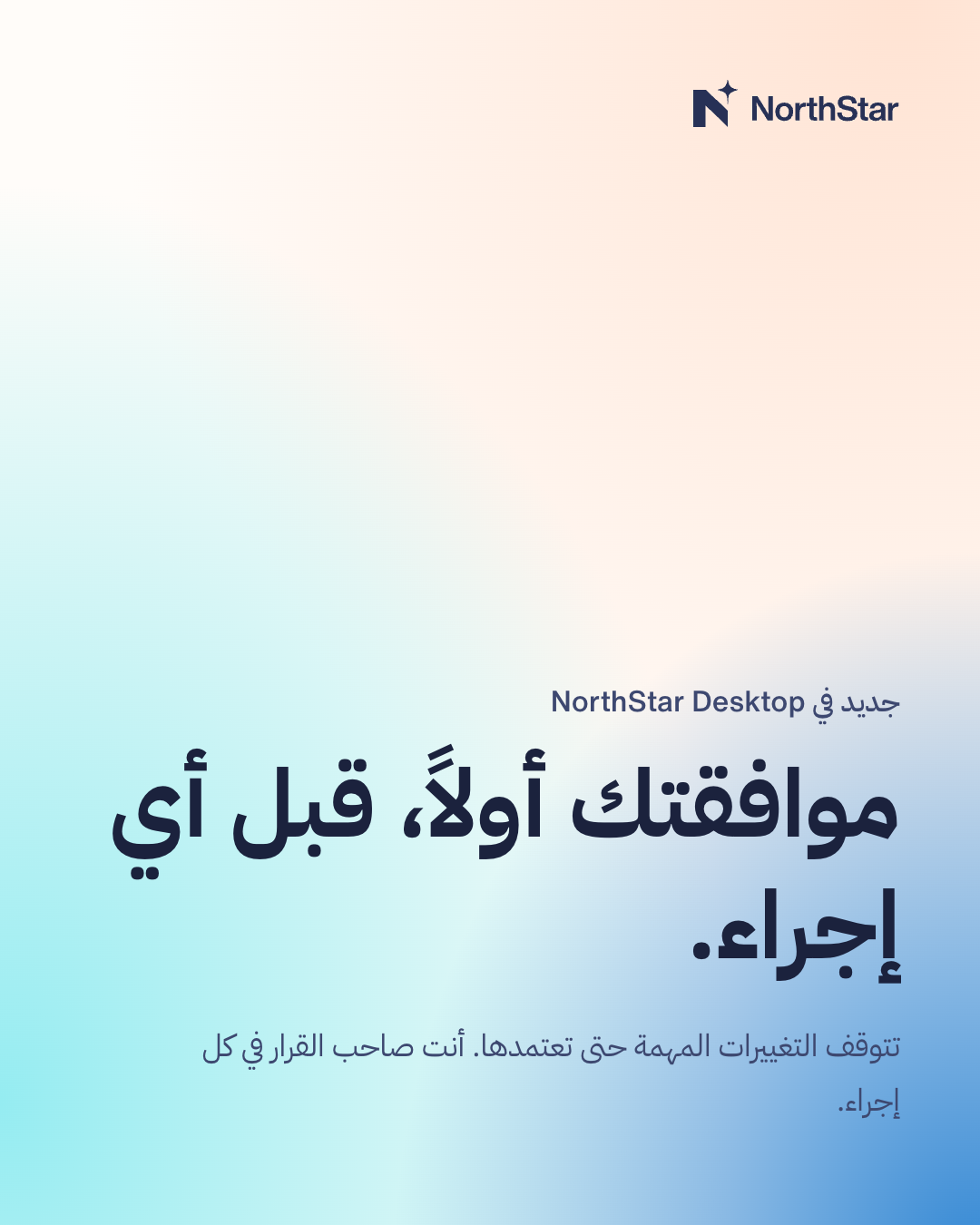
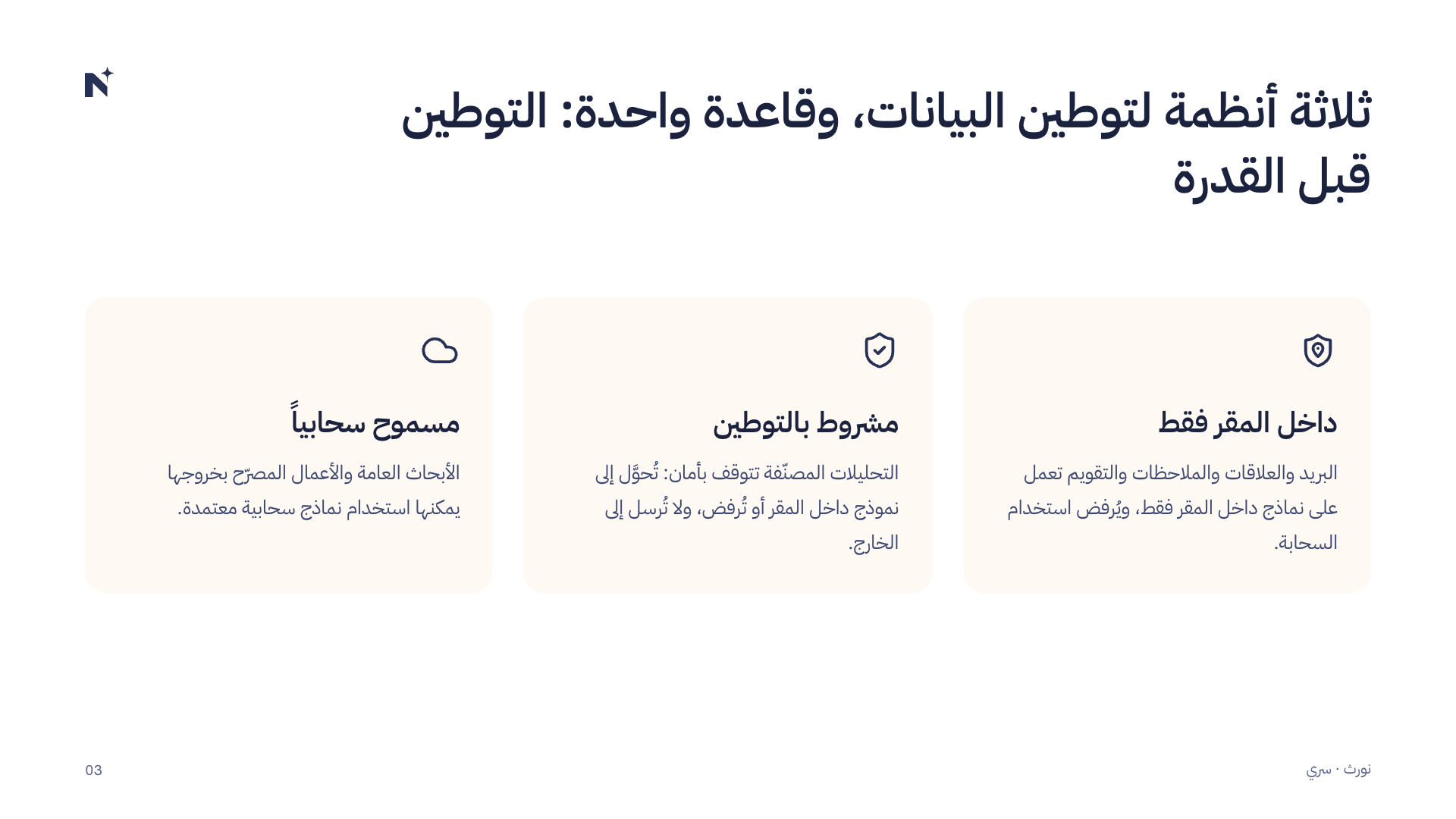
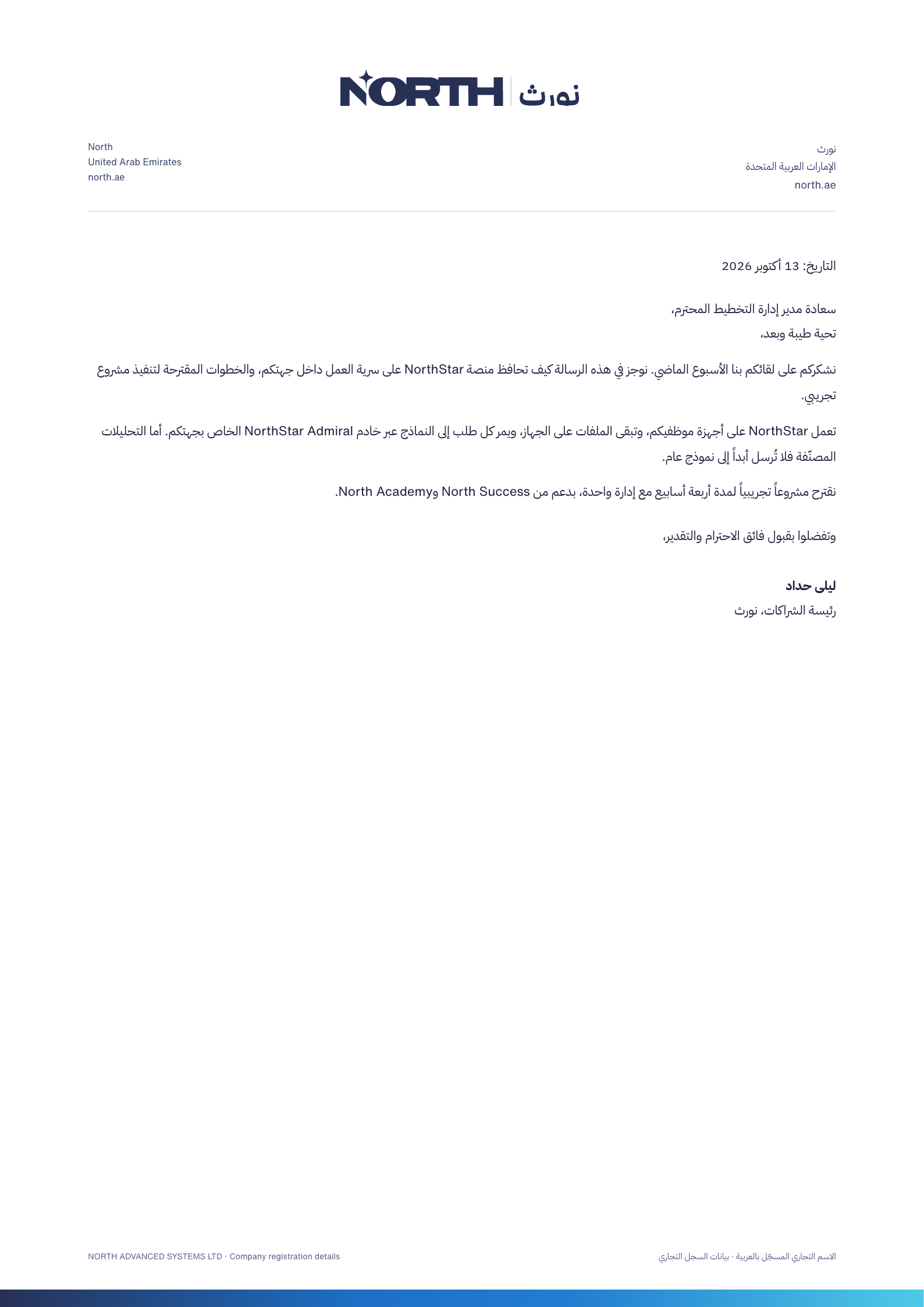
Arabic reads from right to left, so an Arabic layout starts on the right. Mirroring the grid is the first step; then every element is checked for what it means in that direction.
What mirrors and what doesn't
| Mirror | Keep as is |
|---|---|
| The grid, margins and reading order | Logos, lockups and the North star |
| Text alignment: right-aligned, ragged left | Numbers, phone numbers, IDs, codes, URLs, emails |
| Logo position: top right becomes the default | Photos and illustrations (unless the subject points the wrong way) |
| Navigation, breadcrumbs, tabs, steppers and progress | Media controls: play, pause, fast-forward |
| Directional icons: arrows, chevrons, back, send, reply, undo | Non-directional icons: search, settings, user, shield, calendar |
| Lists, bullets and indents | Checkmarks, clocks and circular refresh icons |
| Flows in diagrams and timelines | Code, command lines and charts with numeric scales |
| Form layout: labels on the right, fields aligned right | Product names and Latin text inside Arabic (isolated LTR runs) |
Icons
Flip only what points
An icon mirrors only if it shows direction or progress through time. Everything else stays exactly as drawn. The North star never flips.
Diagrams in Arabic
Flows start on the right and move left. Use the same shapes, lines and colours; icons and accent bars move to the leading (right) edge. Keep product and feature names in Latin script.
Charts and data
- In Arabic-only documents, time axes run right to left and the y-axis sits on the right.
- In bilingual dashboards and product UI, keep charts left to right so both languages read the same data the same way, and mirror only the surrounding layout.
- Legends follow the reading direction. Numbers keep Western digits.
Product UI
Build it once, mirror with logical properties
- Set
<html lang="ar" dir="rtl">for Arabic. Never fake RTL with right alignment. - Use CSS logical properties (
margin-inline-start,padding-inline-end,inset-inline-start) instead of left and right, so layouts mirror for free. - Mirror directional icons with
:dir(rtl) .icon--directional { transform: scaleX(-1); }. - Inputs for email, URL, phone and code keep
dir="ltr". - Test every screen in Arabic with real copy: Arabic strings can be 20–30% longer or shorter than English.
.card {
  padding-inline: var(--n-space-6);
  border-inline-start: 3px solid var(--n-action);
  text-align: start;
}
:dir(rtl) .icon--directional { transform: scaleX(-1); }

<input type="email" dir="ltr" placeholder="name@example.gov">
Templates
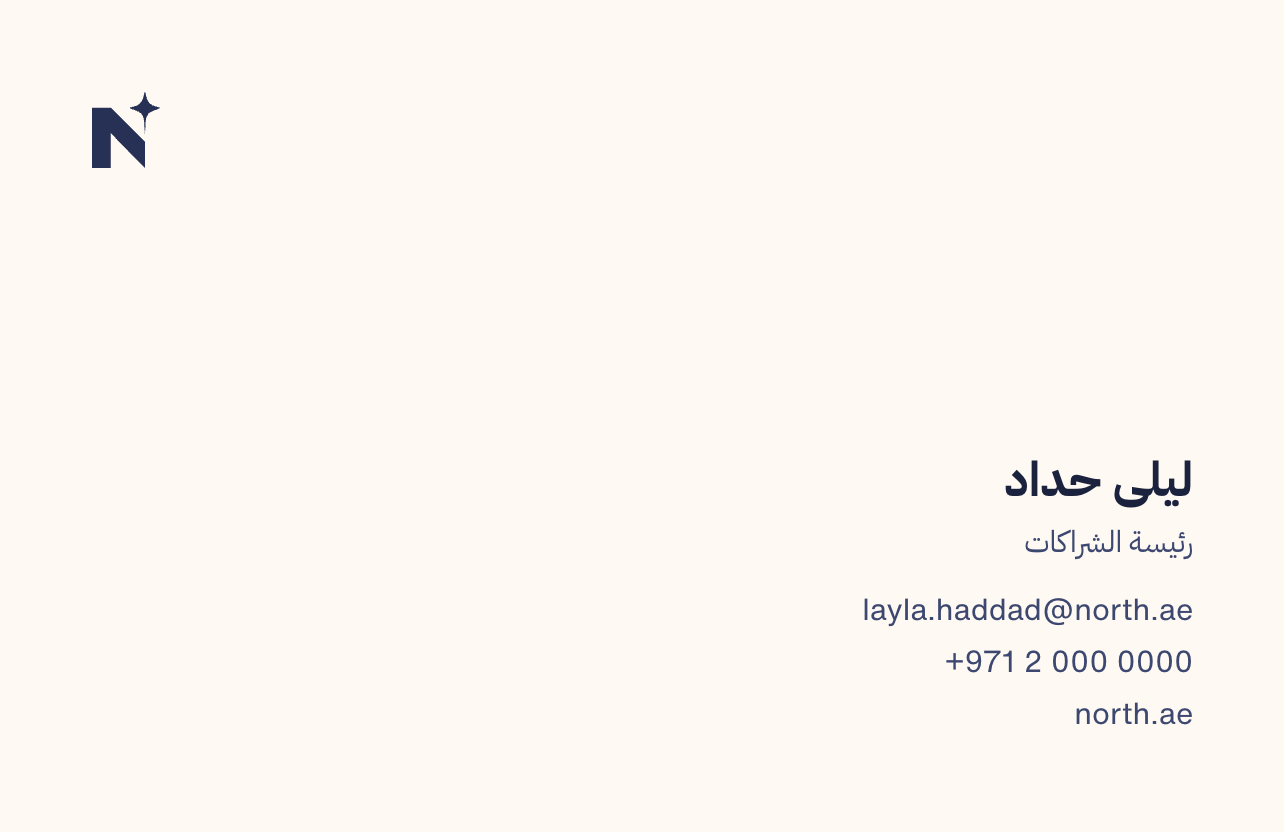
Arabic versions of the main templates are ready to use. The PowerPoint template includes Arabic cover and content layouts with right-to-left text boxes.
Dos and don'ts
Do
- Mirror the grid, then check every element.
- Flip only directional icons.
- Keep numbers, codes and Latin names left to right.
- Use logical CSS properties in product code.
Don't
- Mirror logos, photos of people, or the star.
- Right-align Arabic inside a left-to-right layout.
- Flip charts with numeric axes in bilingual UI.
- Ship Arabic screens without testing real Arabic copy.
Last updated on 14 October 2026